

The Manual Order section allows you to create a shipment by entering in the delivery details, add the product and package information.
Here’s a brief explanation on each section:
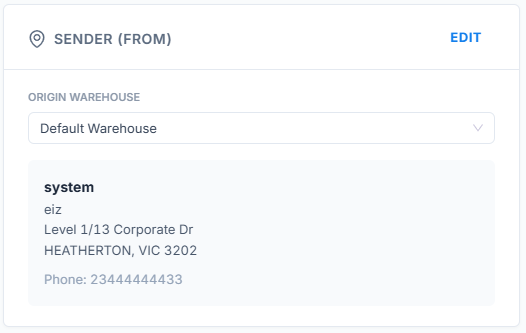
SENDER (FROM) – this will automatically populate with your default Sender Address details. If for some reason you need to change this, you can enter in the information or use the Search Address tool to lookup an address and then select it to populate the fields for you.
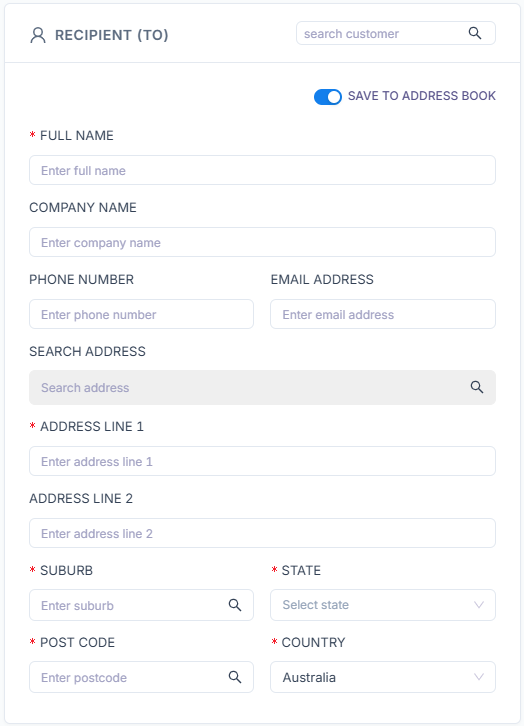
RECIPIENT (TO) – Enter in the receiver details. If you have this receiver saved in the Address Book, use the search box to locate the receiver’s details. You can also use the Search Address tool to locate the address and then select it to populate the fields for you.
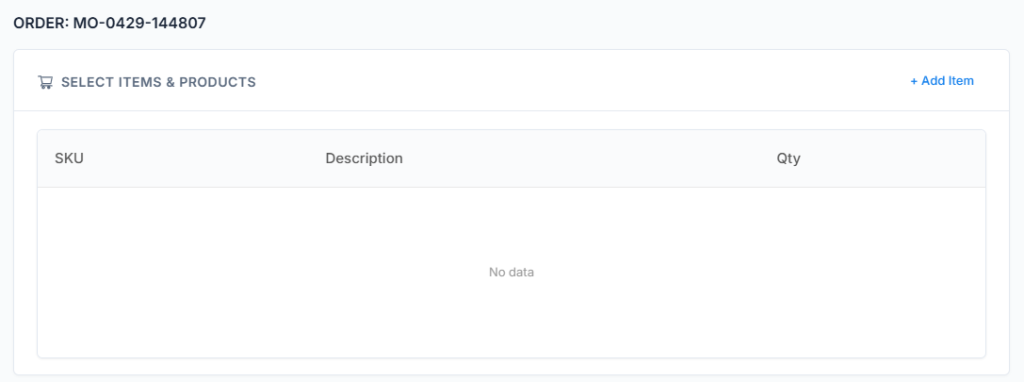
SELECT ITEMS & PRODUCTS – Click the Add Item link to use the pop-up window to search the items to add to your order.
CONFIRM PARCEL INFORMATION – Enter in the package information manually or select a pre-set package using the Consignment drop-down. You can also click the “Use Product Package” to populate the fields with saved product package information.
If you need to add another package, click the Add Package button if the package information is different, otherwise just change the Qty number.
“Merge Pack” when not greyed out will allow you to merge multiple packages to one. “Reset Pack” when clicked will clear the package information.

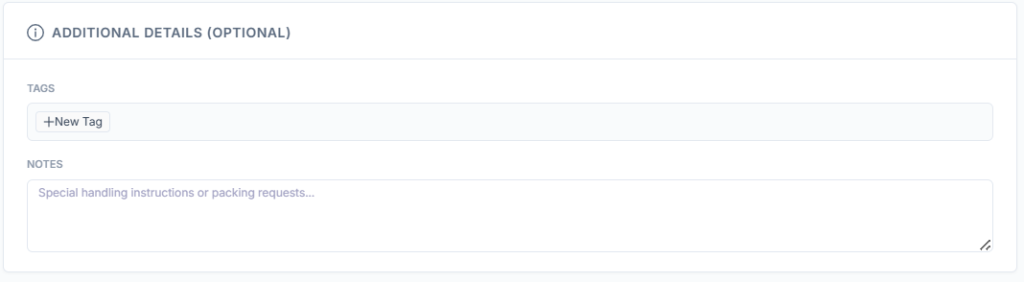
ADDITIONAL DETAILS (OPTIONAL) – these sections allow you to add tags or notes to the shipment if needed.
After you click the Create Order button to complete the Manual Order, your order will be displayed in the New Orders section.


