

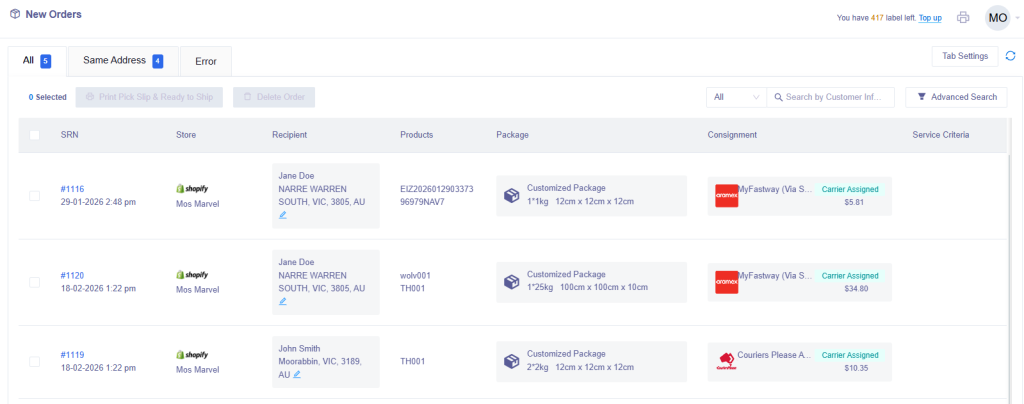
In the New Orders section, orders are assigned the cheapest carrier option automatically. Below are the functions for this section:
| Functions | Description |
|---|---|
| All Tab | Displays all orders synced to ShipMarvel |
| Same Address Tab | Displays all orders that have the same address so you can combine if required. |
| Tab Settings | Allows you to create custom tabs to categorize your orders. |
| Print Pick Slip & Ready To Ship Button | When orders are checked, this button will become active. Click this to print a pick slip and move the checked orders to Ready To Ship section. |
| Delete order Button | Checked orders will be deleted if this button is clicked. |
| Search & Advanced Search | Use these tools to locate specific orders. |
| SRN hyperlink | Click the SRN numbers to view the Order Details page. |
| Recipient pen icon | Click this icon to update the recipient address. |
| Package pen icon | Click this icon to update the package information. |
| Consignment | Click this to review other shipping prices and assign a different carrier if required. |


